
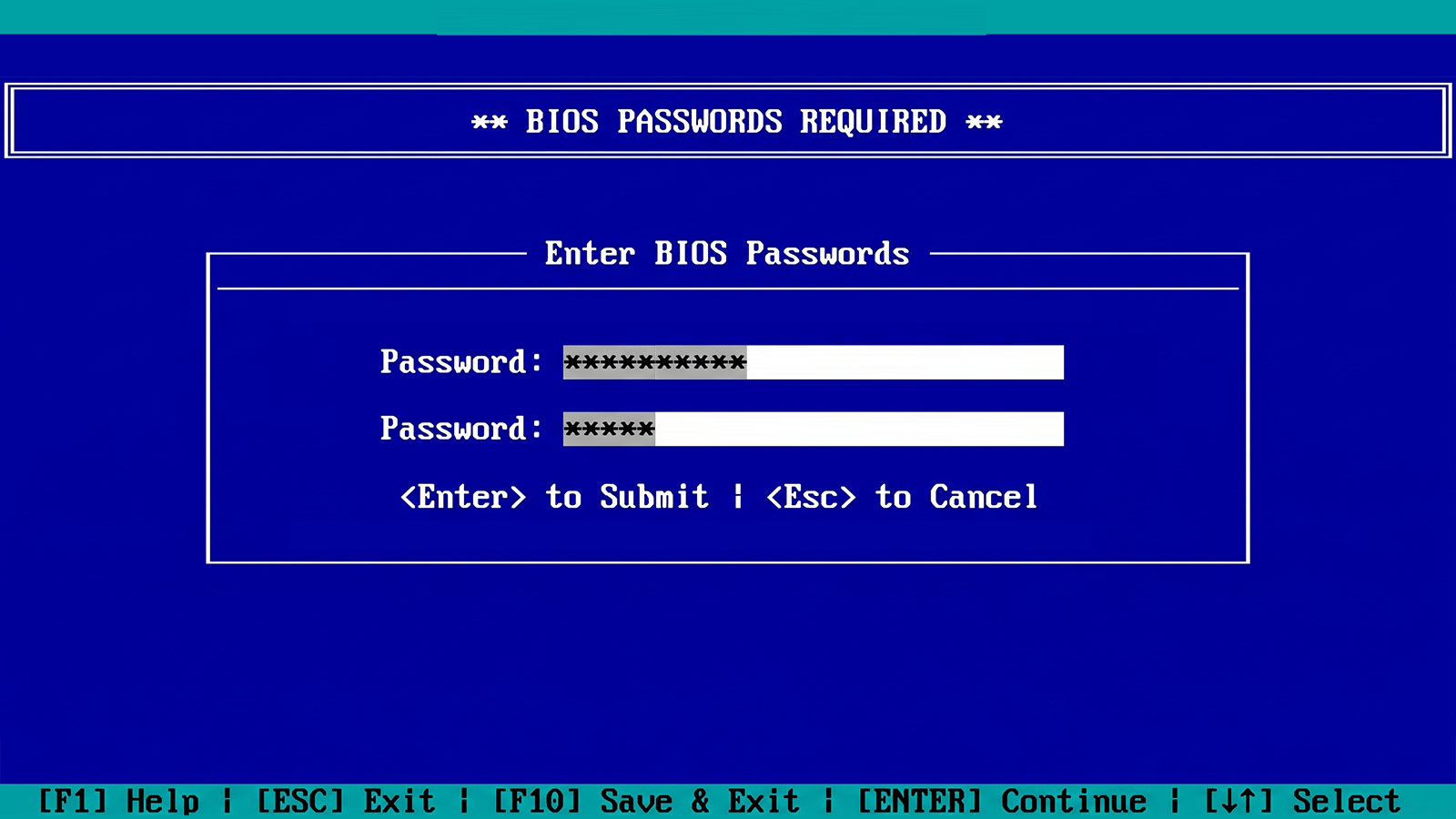
TL;DR: The setup password and the boot password are different controls that protect different things; vendors give them half a dozen different names, and mixing them up leaves real gaps below the OS.
Two Passwords, Two Different Jobs
When someone tells me “we set the BIOS password on the fleet,” my first question is always “which one?” Because there are at least two firmware passwords on a modern machine, they do completely different things, and the failure I see most often is a team that sets one, assumes it covers the other, and leaves a gap they do not know they have.
Here is the distinction, stated plainly:
- The setup password (the administrator password) controls who can change UEFI/BIOS firmware configuration. It does not prompt when you power the machine on. A laptop with only the setup password set boots straight to the operating system like normal. What it protects is the settings: Secure Boot state, boot order, the TPM, IOMMU, and everything else in the setup menu.
- The boot password (the power-on password) is required before the machine will start. Set this one, and the system prompts for a secret at power-on and will not proceed without it.
Those are not two flavors of the same control. They sit at different points in the boot process and defend against different things. The setup password stops an attacker from reconfiguring the platform. The boot password stops them from starting it. If you only set the administrator password, a stolen laptop still powers on and boots your installed OS, and unless you also locked configuration changes, boot-order edits may still be on the table. If you only set the power-on password, anyone who gets past it can still walk through your firmware settings. You usually want to make a deliberate decision about both, not set one and call it done.
There is a third credential worth mentioning while we are here: the drive or storage password (often referred to as an ATA Security or HDD/NVMe password). That one is enforced by the drive’s own controller, so it survives a motherboard swap. It is the strongest of the three against device theft, and it is also the one most likely to cause you operational pain, which I will come back to.
Everybody Calls Them Something Different
A large part of why these get confused is that no two vendors use the same words. The same control is a “Supervisor Password” on one machine and an “Admin Password” on the next. Here is the mapping across the three vendors you are most likely to be managing:
| What it does | Lenovo | Dell | HP |
| Gate firmware config changes | Supervisor Password | Admin Password | BIOS Administrator Password |
| Required to boot the machine | Power-On Password | System Password | Power-On Password |
| Protect the drive itself | Hard Disk / NVMe Password | HDD Password | DriveLock |
Lenovo adds a fourth: the System Management Password, a lower-authority version of the Supervisor password for help-desk use. NSA’s UEFI guidance, which I will get to, groups the whole family as Administrative, User, System, and Storage Drive passwords. The takeaway is not to memorize the grid; it is to recognize that “BIOS password” is ambiguous, and that a policy or a ticket that just says “set the BIOS password” has not actually specified which control anyone configured.
What the NSA Guidance Actually Says
This is well-trodden ground, and the best public reference is the NSA, which has published specific guidance on UEFI hardening: the UEFI Lockdown Quick Guidance and the longer UEFI Defensive Practices Guidance. A few points from that guidance are worth pulling out because they cut against the reflex to “turn everything on”:
- Administrative and user passwords limit access to configuration and boot customization. They do not interfere with a normal, non-customized boot. That is the official version of the distinction I opened with.
- A unique administrative password per machine is the strongest implementation. A single shared password across the fleet is effectively a master password, and firmware master and service passwords have long been recovered from vendor images.
- Where the firmware offers an option to lock out user changes when an administrator password is set, enable it. This is the setting that actually prevents edits to boot order and Secure Boot, and it is easy to miss because setting the admin password alone does not always enable it.
- NSA is deliberately cautious about system and storage-drive passwords, as they can disrupt operations. A forgotten power-on or drive password can brick a workflow or a repair, so the recommendation is to weigh that operational cost against the blanket enablement of every password the firmware offers.
That last point matters because it reframes the goal. The objective is not “set the maximum number of passwords.” It is “set the administrator password, uniquely, with configuration locked, and make a considered call on the boot and drive passwords based on what you are actually defending against.”
Setting It Is Not the Same as Protecting It
Assume you did the sensible thing and set a unique administrator password. There is a second problem that has nothing to do with the password you chose: some firmware stores credentials insecurely.
I ran a deliberately boring experiment across a handful of business and consumer laptops. Set a password, dump the flash, remove the password, dump again, set it once more, dump a third time, then diff everything and see which bytes actually track the change. The results were not reassuring. On one vendor’s machine, the administrator password sat in a firmware variable in plaintext ASCII, readable straight out of the dump with no cracking required. On another, the firmware kept only a short, truncated hash built from the uppercased password combined with a static key baked into the firmware image, which means it is both crackable offline and identical across every unit of that model. “The password is set” and “the password is protected” turned out to be very different claims.
Two more failure modes are worth stating:
- On older and consumer-grade hardware, the password often lives in NVRAM or CMOS, so removing the coin cell or shorting a service jumper clears it. The control is real, but it is strongest on modern systems where the credential lives in protected flash and is enforced by the embedded controller.
- Setting a BIOS password does not prevent every physical access attack. Eclypsium’s YellowKey article is a clean example: the attack reaches the Windows Recovery Environment through keyboard shortcuts, so it never changes the boot order or boots removable media, and a BIOS administrator password does nothing to stop it. Know what a given password does and does not cover.
You Cannot Audit What You Cannot See
Say the configuration is right across the board. How do you confirm it across 10,000 machines?
On a running system, you can often read the state directly. On Linux, the vendor firmware drivers expose it under /sys/class/firmware-attributes/: Dell via dell-wmi-sysman, Lenovo via thinklmi, HP via hp-bioscfg. On Windows, the same state shows up in vendor WMI namespaces. For a managed fleet, that is the fast path, and you should use it.
It is also incomplete. The interface is vendor-specific, and some vendors expose nothing at all, which leaves reading the flash and interpreting it as the only option. The flag that means “administrator password is set” lives in a different place and follows different rules on Insyde, on Dell’s EDK2 firmware, and on AMI Aptio, so there is no single portable check. The recurring lesson below the OS applies here directly: a policy that says “require a BIOS password” is a statement of intent, and the byte in flash is the actual state. A compliance checkbox is not the same as visibility into what is really configured on each device.
What To Do
Set a unique administrator password on every system, store it in a privileged credential vault, and rotate it on a schedule. Do not reuse one password across the fleet.
Turn on the setting that locks user configuration changes when the administrator password is present. Setting the password without this may leave edits to boot order and Secure Boot open.
Decide on the boot and drive passwords deliberately. They defend against device theft, but data-at-rest protection is the job of full-disk encryption with a pre-boot PIN, and NSA rightly flags the operational cost of credentials that can lock you out of a repair and recommends OS-level disk encryption instead.
Configure and audit at fleet scale with vendor tooling rather than by hand: Dell Command | Configure or iDRAC, Lenovo Think BIOS Config or XClarity, HP BIOS Configuration Utility (BCU) or MIK, and Intel EMA/AMT for out-of-band access.
Build defense in depth so no single password is a point of failure: Secure Boot with custom keys, Intel Boot Guard or AMD PSB, BIOS write protection, Kernel DMA Protection, and TPM plus PIN for BitLocker. TPM-only BitLocker has fallen to discrete-TPM bus sniffing (the Dolos Group demonstrated this against a ThinkPad X1 Carbon in 2021) and to YellowKey, so a startup PIN earns its keep.
Audit state, not policy. Read the actual password-set flag per device through firmware attributes or WMI, and fall back to a flash read for the vendors that expose nothing.
Where Eclypsium Fits
This is the layer we work in. Eclypsium reads firmware configuration and password state below the operating system across vendors and surfaces machines where the administrator is unset, along with the Secure Boot, Boot Guard, and TPM posture that accompanies them.
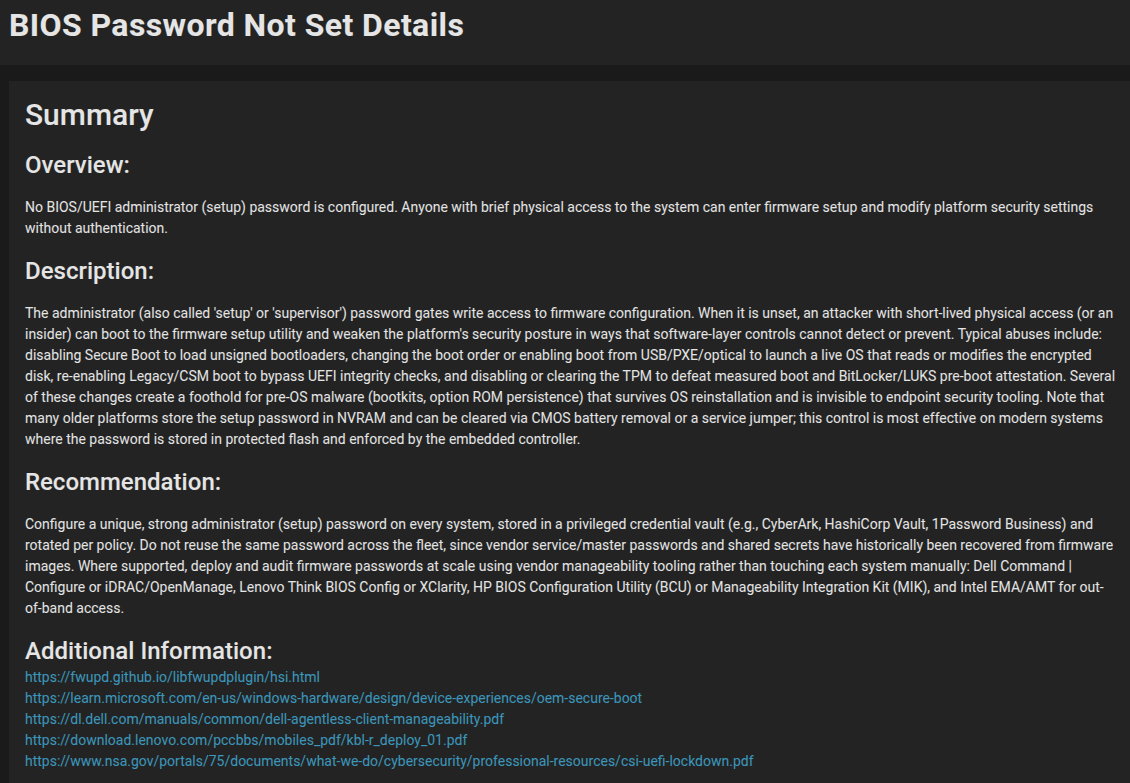
Knowing which of these controls is actually set on each device, and knowing it from the firmware rather than from a policy, is the kind of visibility that has to come from below the OS.
Frequently Asked Questions
The setup (administrator) password controls who can change firmware settings and does not prompt at boot. The power-on (boot) password is required before the machine will start. They protect different things, so set them intentionally.
No. A machine with only the administrator password set boots normally. If you want a prompt at power-on, that is the separate boot or power-on password.
Because each vendor picked its own. The config-change control is “Supervisor” on Lenovo, “Admin” on Dell, “BIOS Administrator” on HP. The boot control is “Power-On” on Lenovo and HP, and “System” on Dell. Always confirm which control a document means.
No. A thief can pull the drive and read it elsewhere. Full-disk encryption with a pre-boot PIN protects the data. The BIOS passwords protect configuration and boot.
No. YellowKey reaches the Windows Recovery Environment through keyboard shortcuts without changing boot order, so the administrator password does not block it. Match the control to the threat.
Sources
- NSA: UEFI Lockdown Quick Guidance
- NSA: UEFI Defensive Practices Guidance
- Dell: Understanding System Password, Admin Password, and HDD Password in BIOS
- Lenovo: UEFI BIOS Password Types
- Eclypsium: YellowKey, the Unpatched BitLocker Bypass Hidden in Windows Recovery
- Dolos Group: From Stolen Laptop to Inside the Company Network
- NIST SP 800-147: BIOS Protection Guidelines
- NIST SP 800-193: Platform Firmware Resiliency Guidelines